


ใช้งานมิเตอร์พลังงาน Wi-Fi ใน Thingsboard
หากคุณมีคำถามใดๆ เกี่ยวกับบทช่วยสอนนี้ โปรดแจ้งให้เราทราบความคิดเห็นของคุณได้ที่ https://imeter.club/topic/462
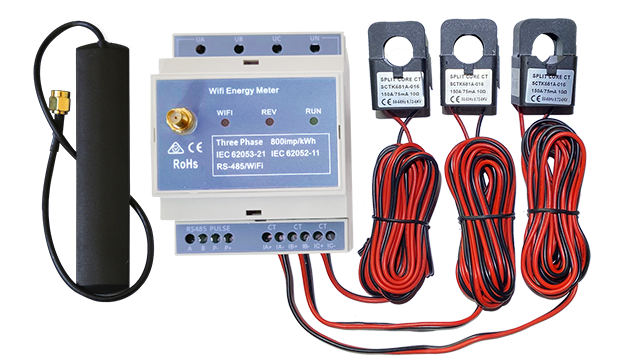
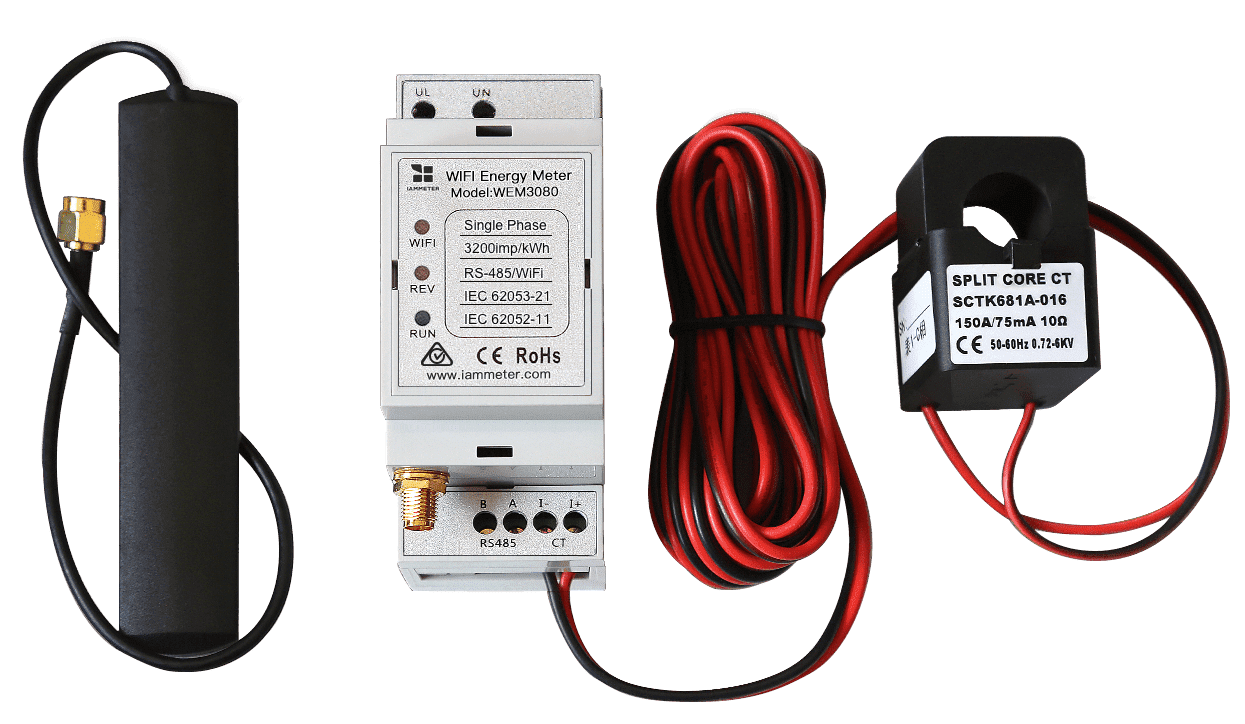
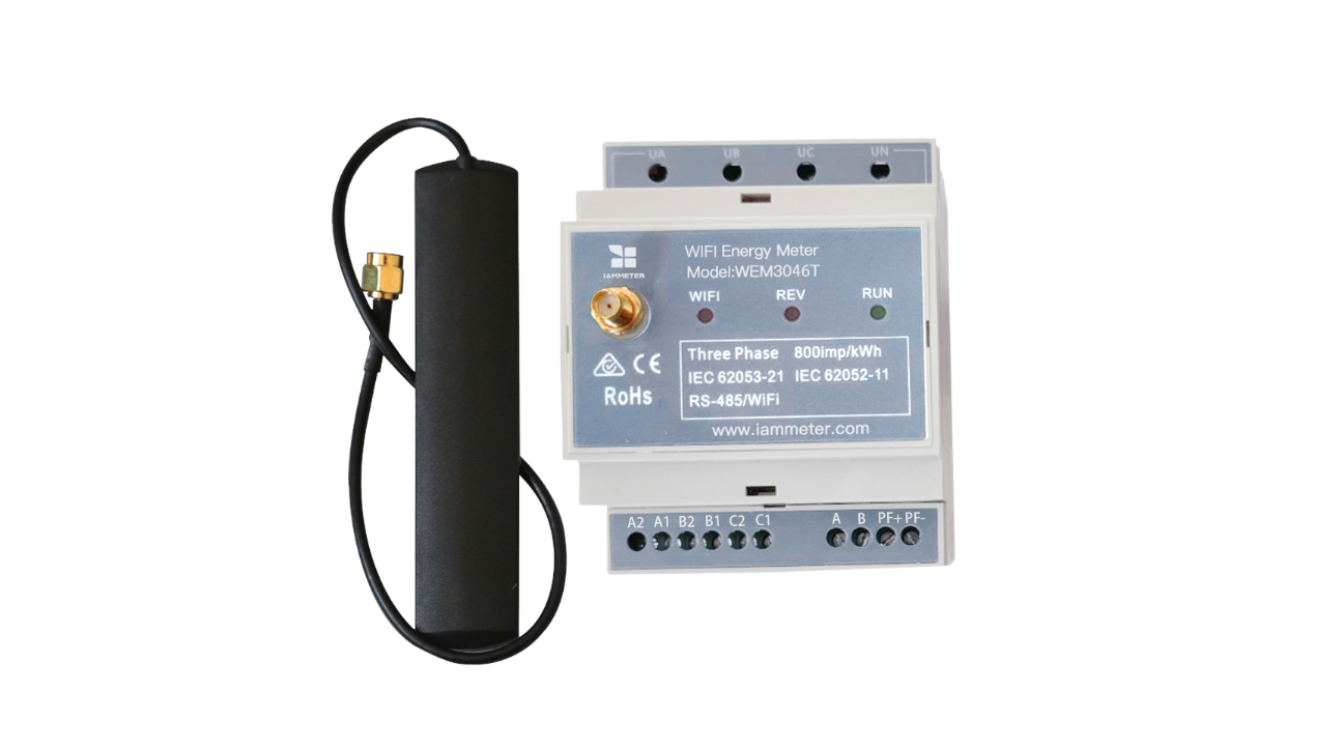
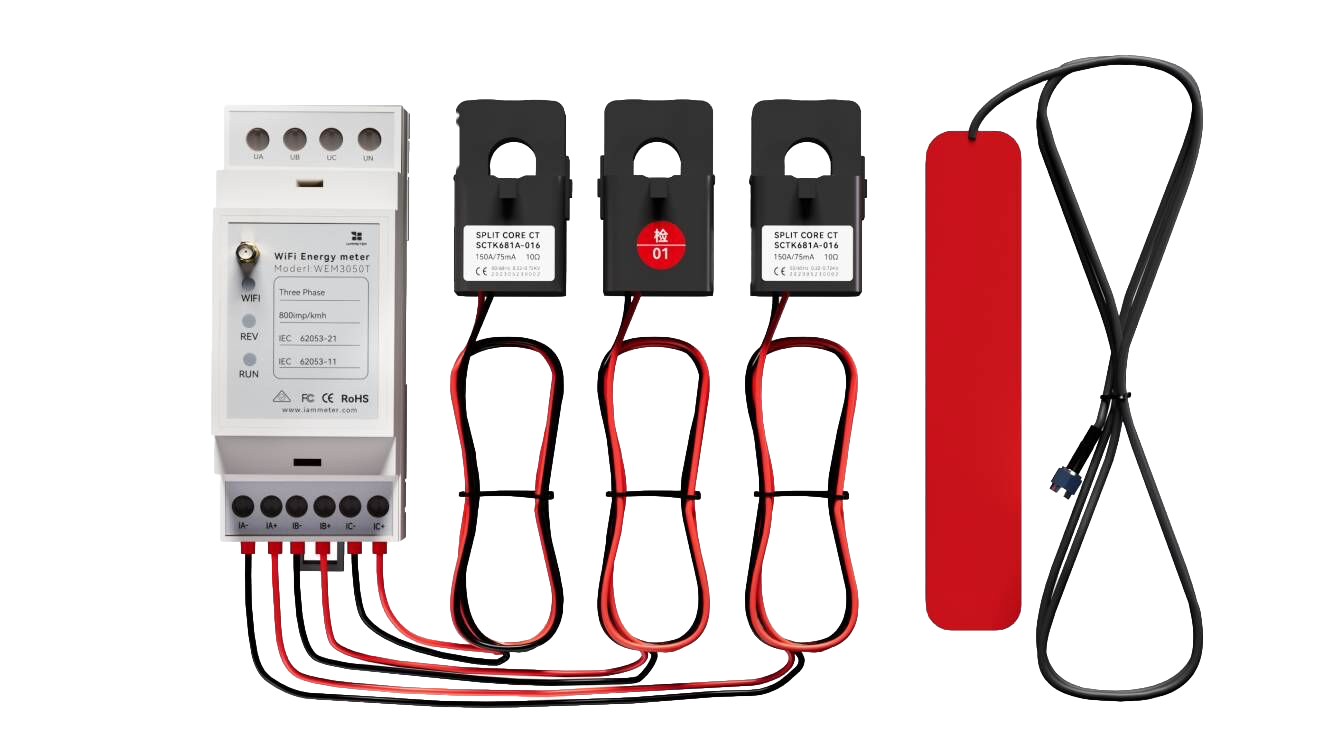
กำหนดค่ามิเตอร์พลังงาน Wi-Fi ของ IAMMETER
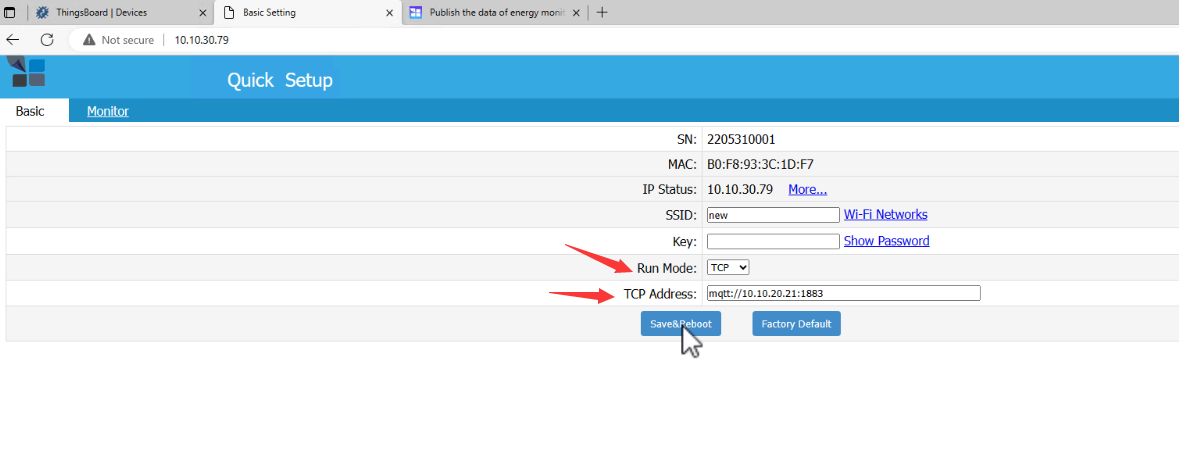
เข้าไปที่ IP ท้องถิ่นของมิเตอร์พลังงาน Wi-Fi
โหมดการทำงานและที่อยู่
- โหมด RUN: TCP
- ที่อยู่ TCP: mqtt://10.10.20.21:1883 (IP นี้คือ IP ของ ThingsBoard MQTT Broker ของคุณ)
จากนั้นคลิก Save&Reboot
ตั้งค่าผู้ใช้และรหัสผ่านของ MQTT
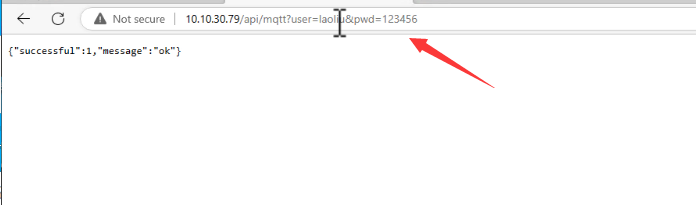
ผลิตภัณฑ์ของ IAMMETER รองรับ MQTT คุณสามารถตั้งค่าผู้ใช้และรหัสผ่านของ mqtt ผ่าน API
รายละเอียด: เผยแพร่ข้อมูลของมิเตอร์พลังงานไปยังเซิร์ฟเวอร์ MQTT ของคุณ
ตอนนี้เราจะตั้งค่าข้อมูลรับรอง mqtt (ผู้ใช้/รหัสผ่าน) ดังนี้ ผู้ใช้: laoliu รหัสผ่าน: 123456
API: [local IP of the energy meter]/api/mqtt?user=laoliu&pwd=123456
โปรดทราบ:
- IP คือ IP ท้องถิ่นของมิเตอร์พลังงาน Wi-Fi
- ข้อมูลรับรองนี้ (laoliu, 123456) จะถูกใช้ในการตั้งค่า Thingsboard ในบทถัดไป
Thingsboard
Profiles -> Device profiles
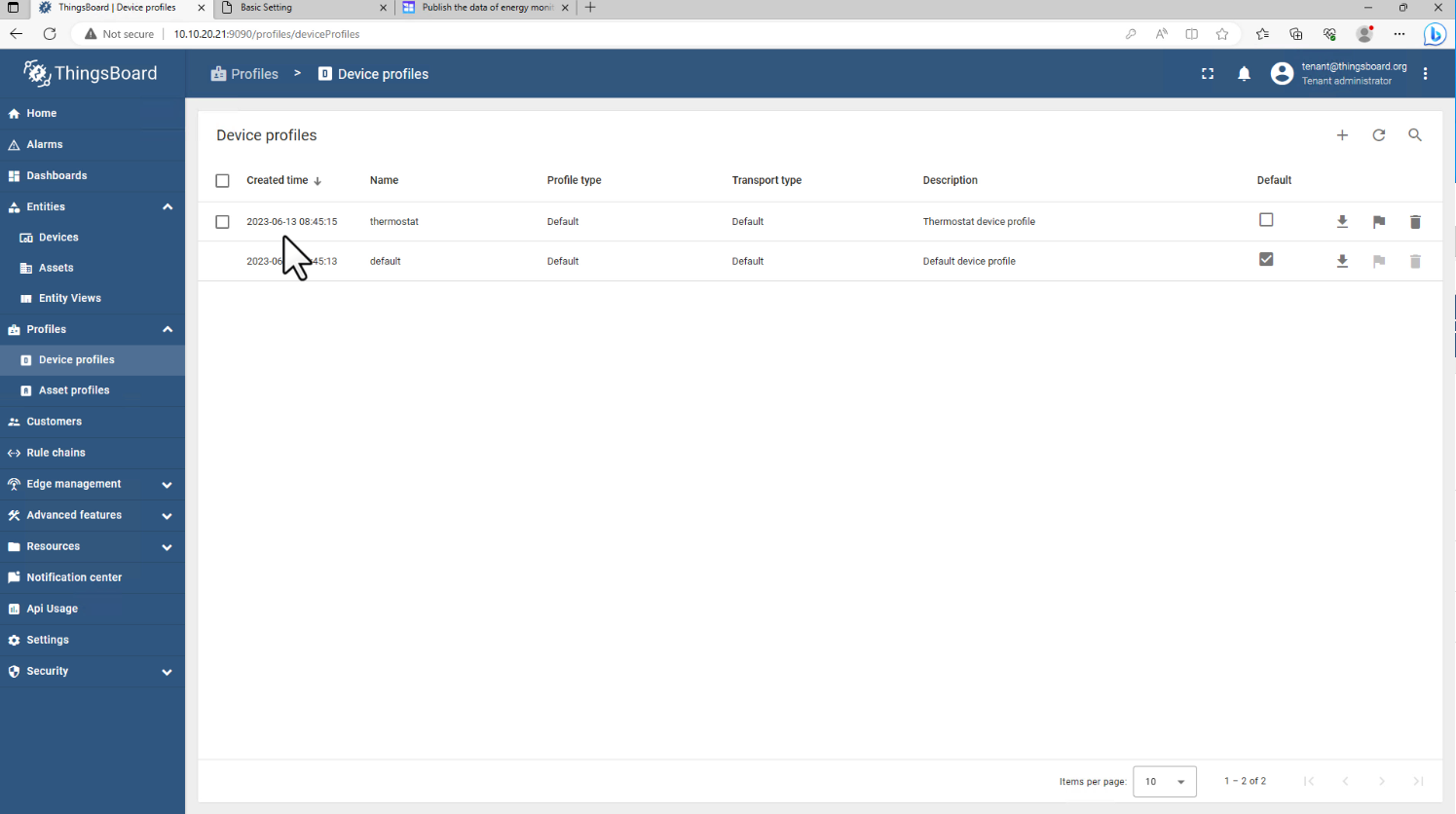
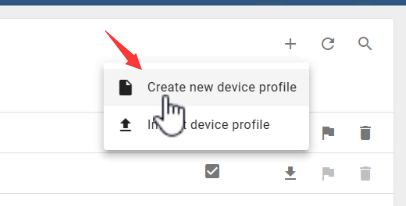
กด "+"
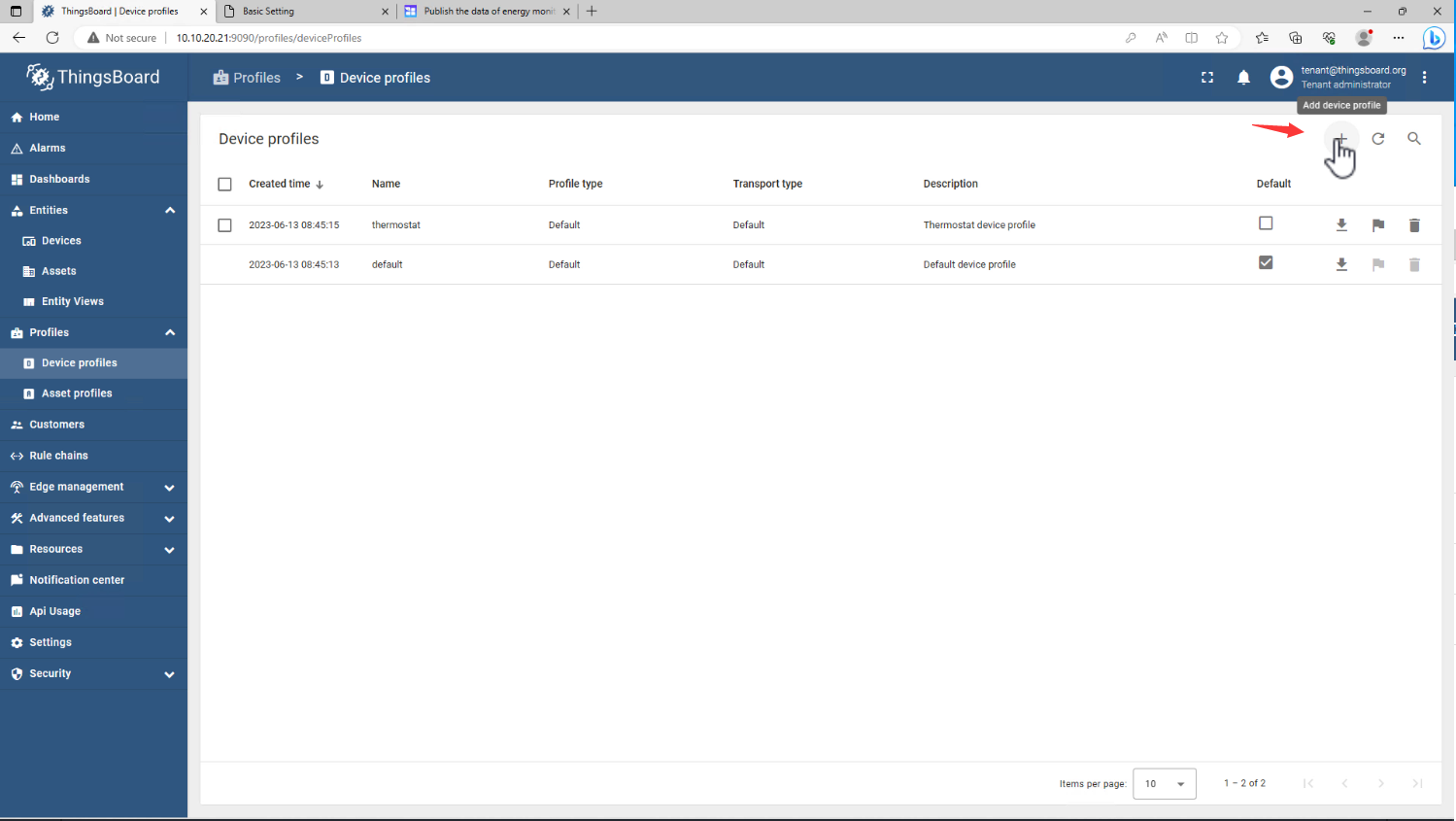
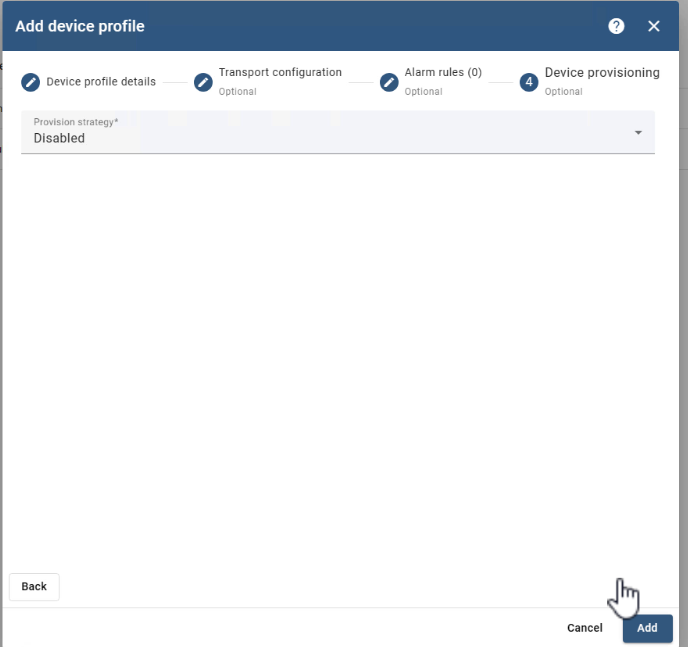
สร้าง Device Profile ใหม่
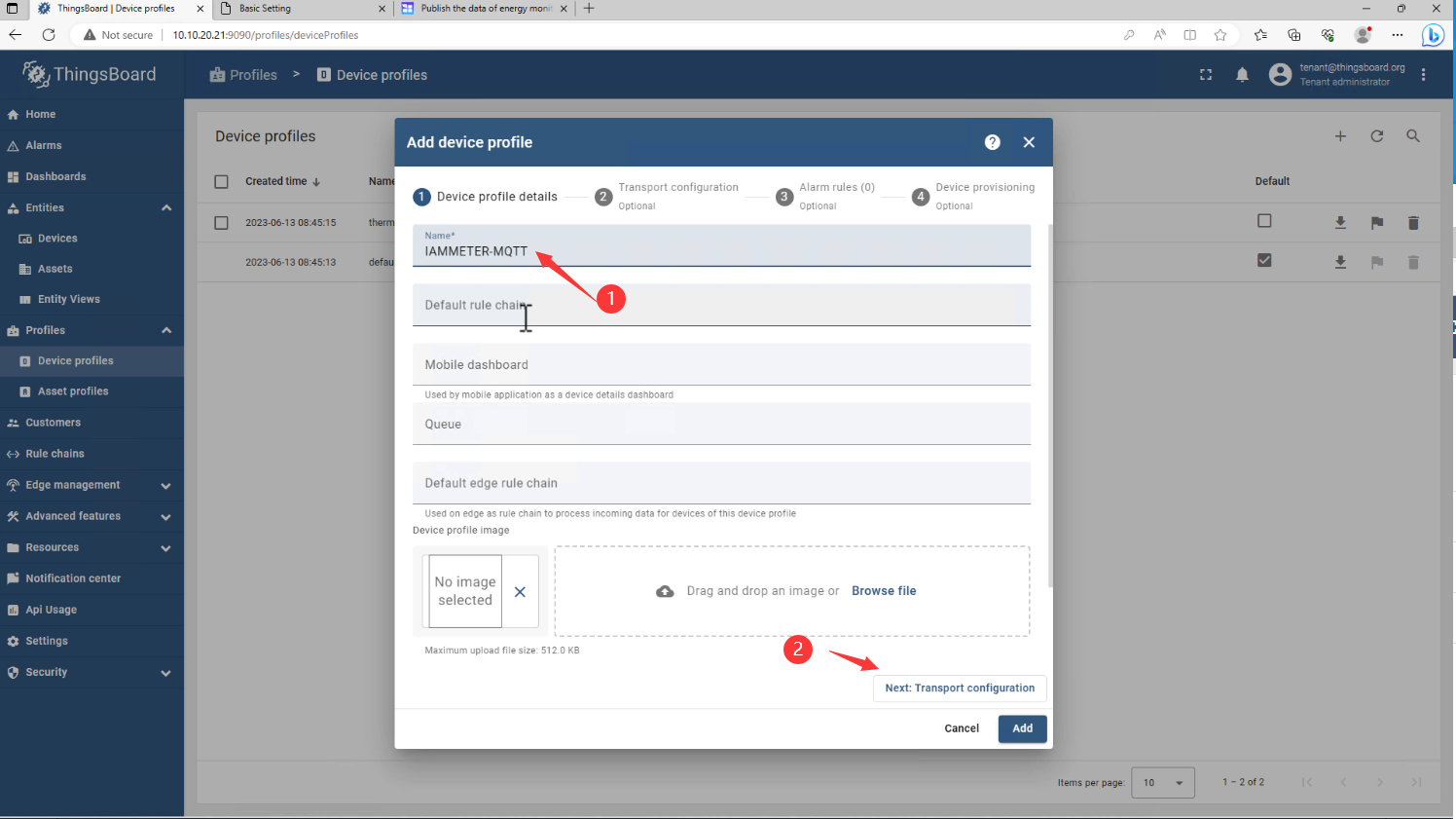
ชื่อ: IAMMETER-MQTT
คลิก Next
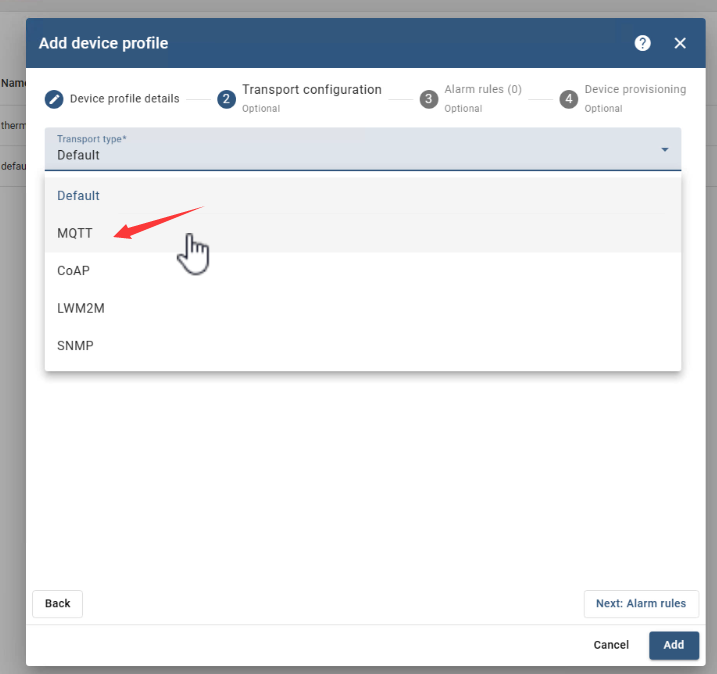
เปลี่ยน Transport type* เป็น MQTT
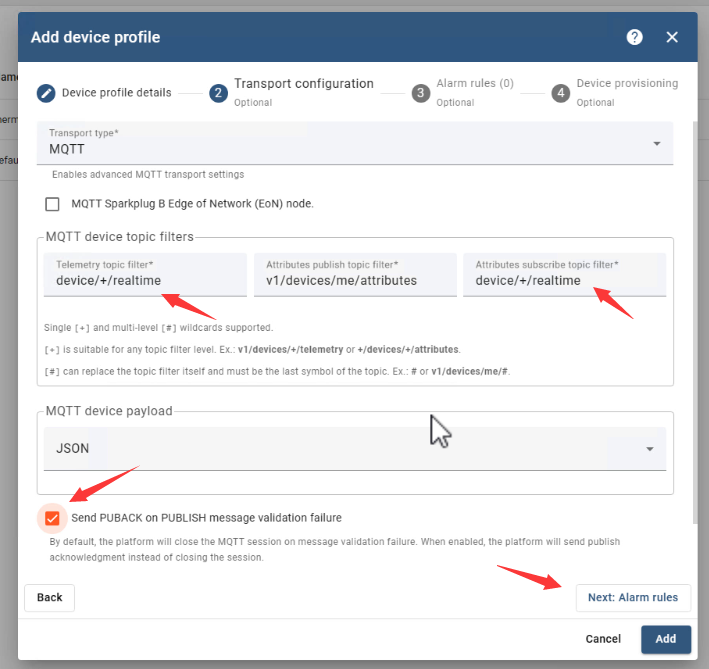
เปลี่ยน Telemetry topic filter* เป็น "device/+/realtime" และ Attributes subscribe topic filter* ด้วย
ที่นี่คุณสามารถค้นหาหัวข้อ IAMMETER ได้ที่ เผยแพร่ข้อมูลของมิเตอร์พลังงานไปยังเซิร์ฟเวอร์ MQTT ของคุณ (iammeter.com)
จากนั้นคลิก Next, Next, Add
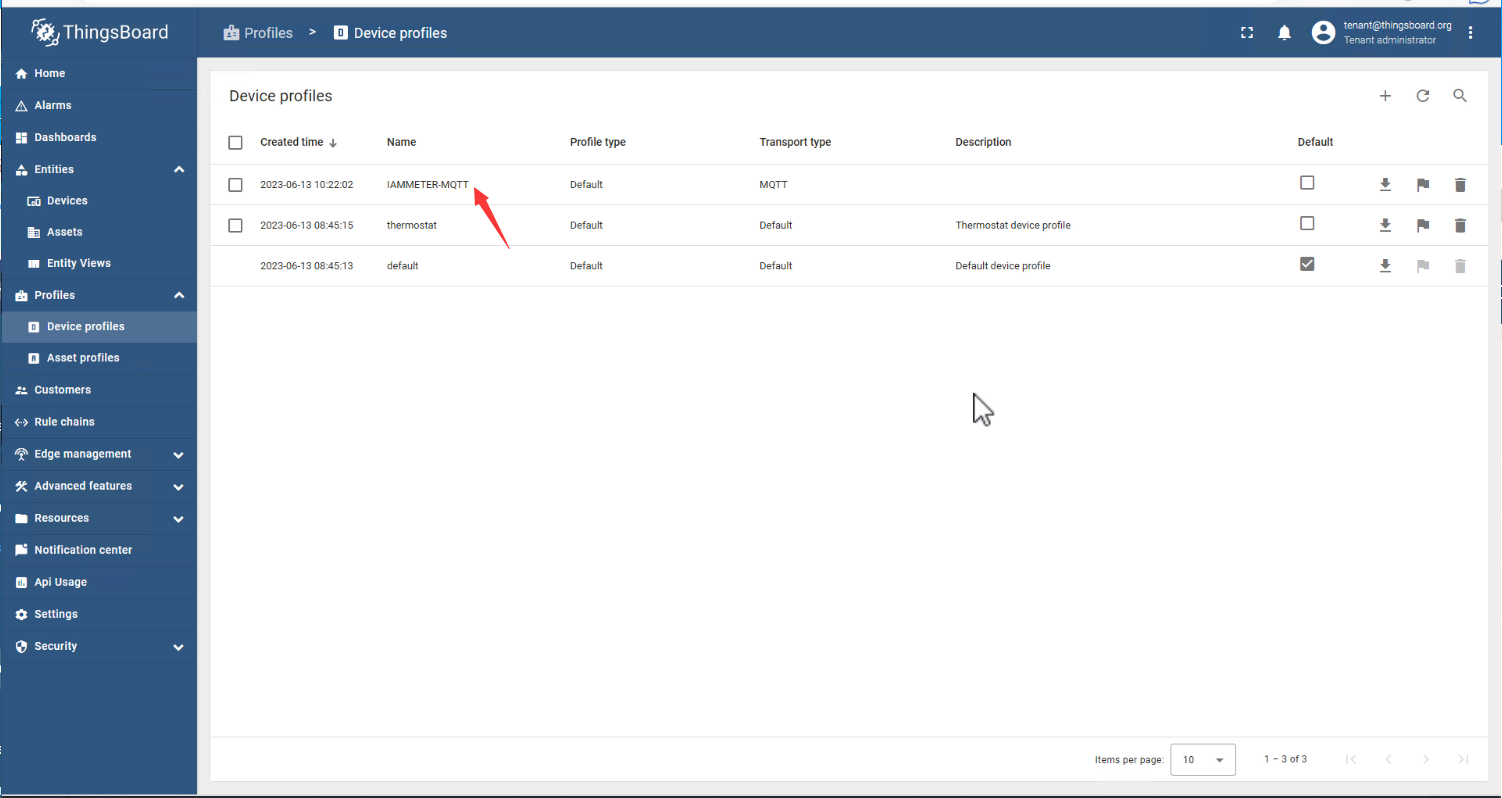
ข้อมูลรับรองอุปกรณ์ (Client ID, ผู้ใช้, รหัสผ่าน)
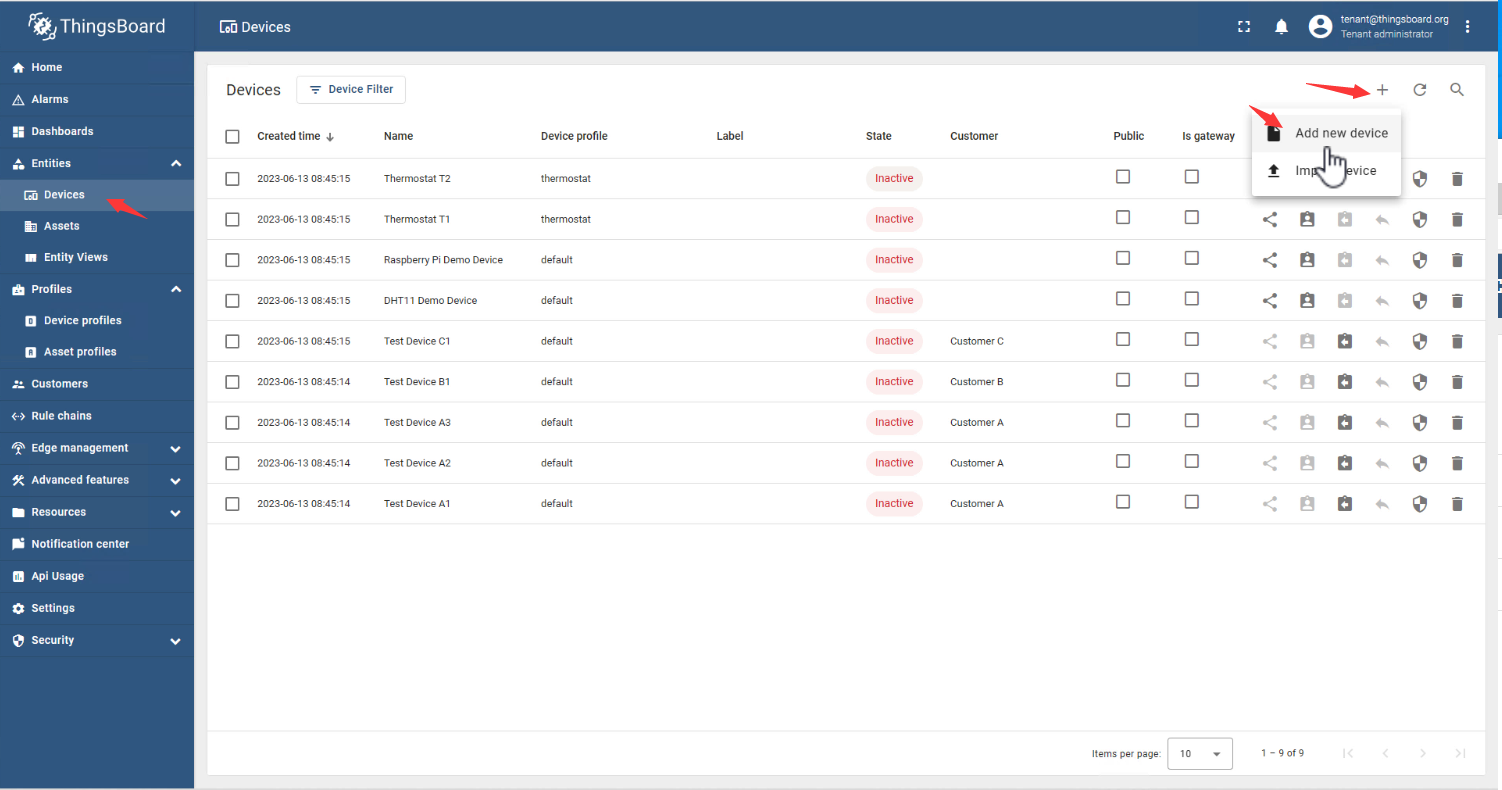
เพิ่มอุปกรณ์ใหม่
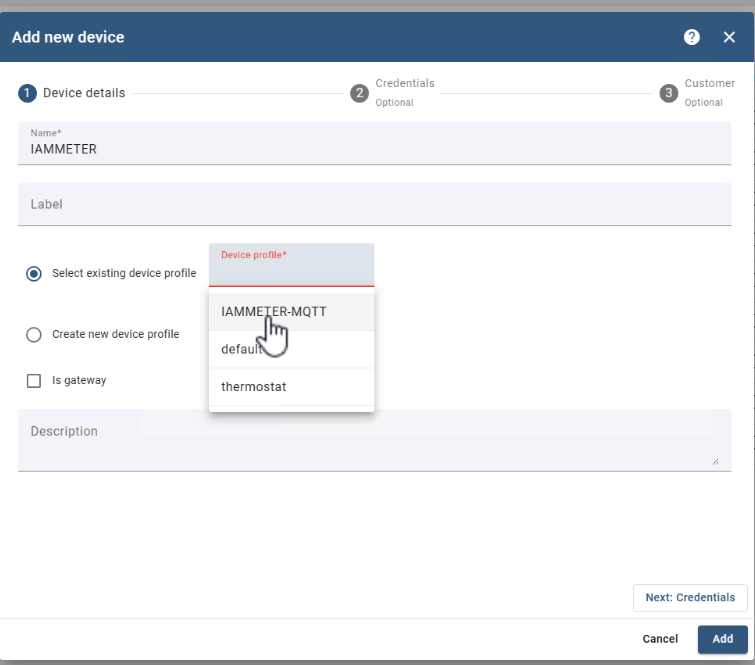
ชื่อ: IAMMETER
เลือก Device Profile ที่มีอยู่: IAMMETER-MQTT
คลิก Next
เลือก Add credentials
ประเภทข้อมูลรับรอง: MQTT Basic
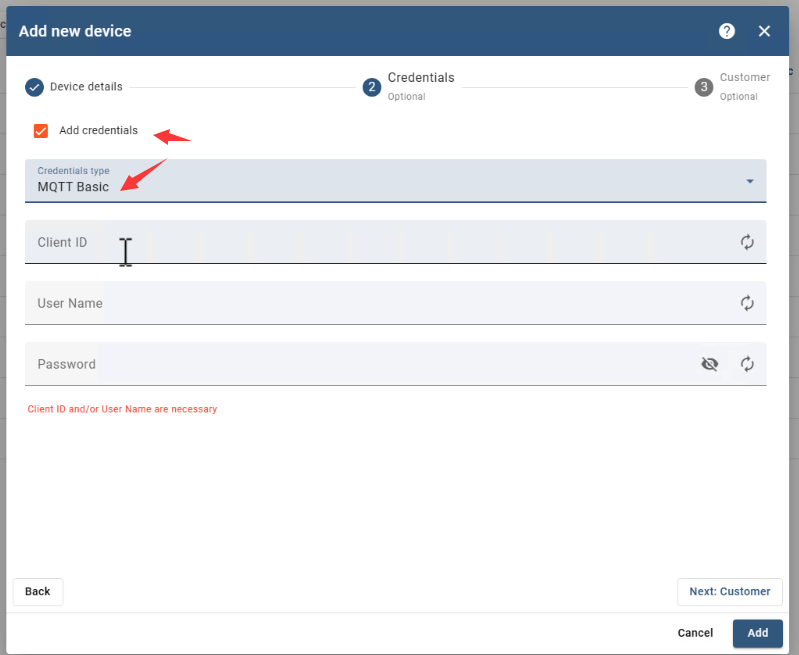
Client ID
ใช้ SN ของมิเตอร์พลังงาน Wi-Fi เป็น Client ID ของ MQTT
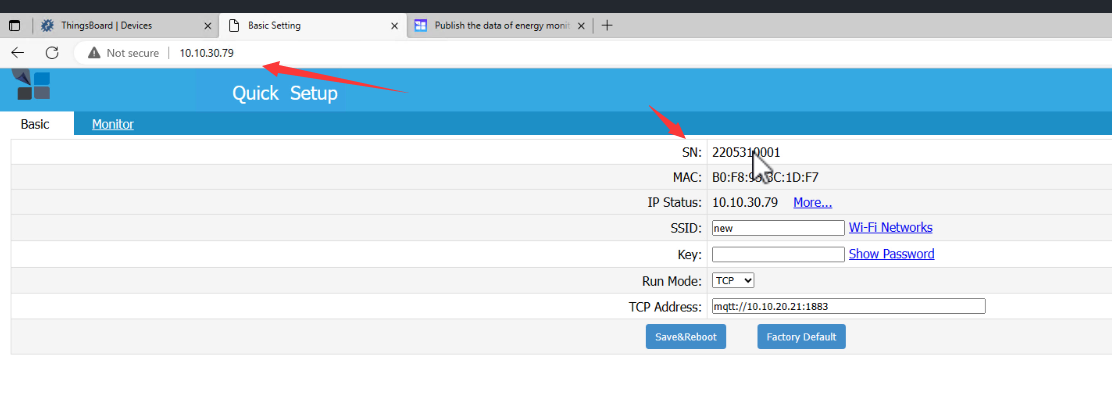
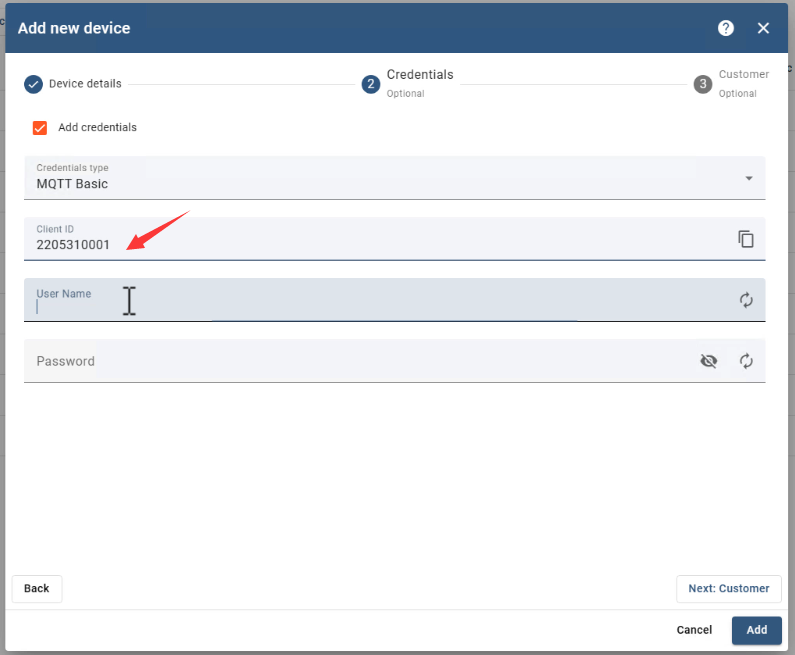
วาง SN ลงใน Client ID
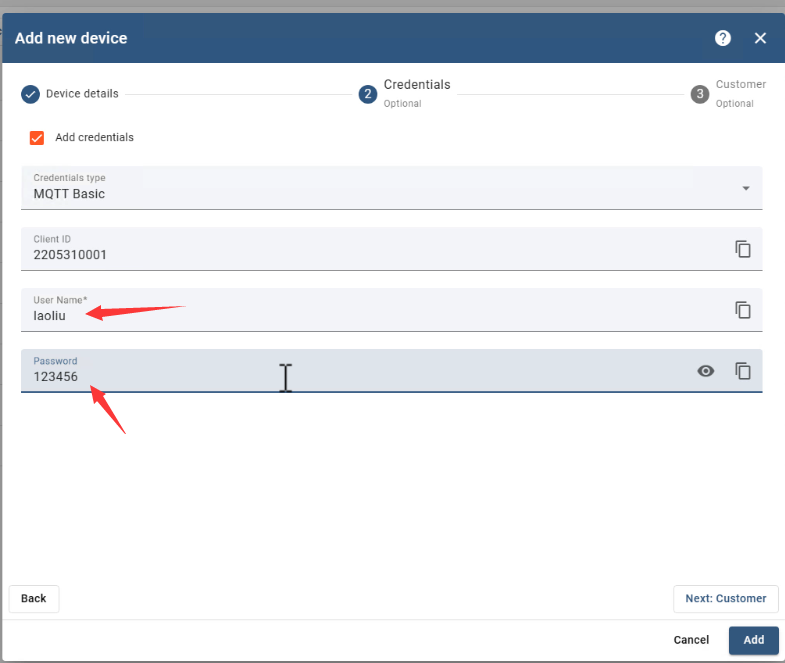
ชื่อผู้ใช้และรหัสผ่าน
ใช้ข้อมูลรับรอง (laoliu/123456) ที่ตั้งค่าไว้ในมิเตอร์พลังงาน (อ้างอิงจากบทแรก)
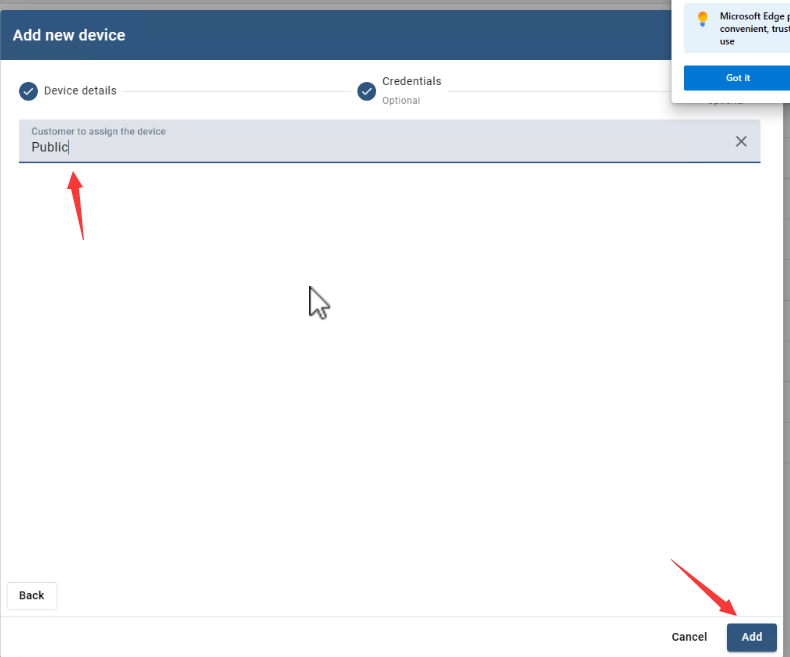
Next: เลือก Public
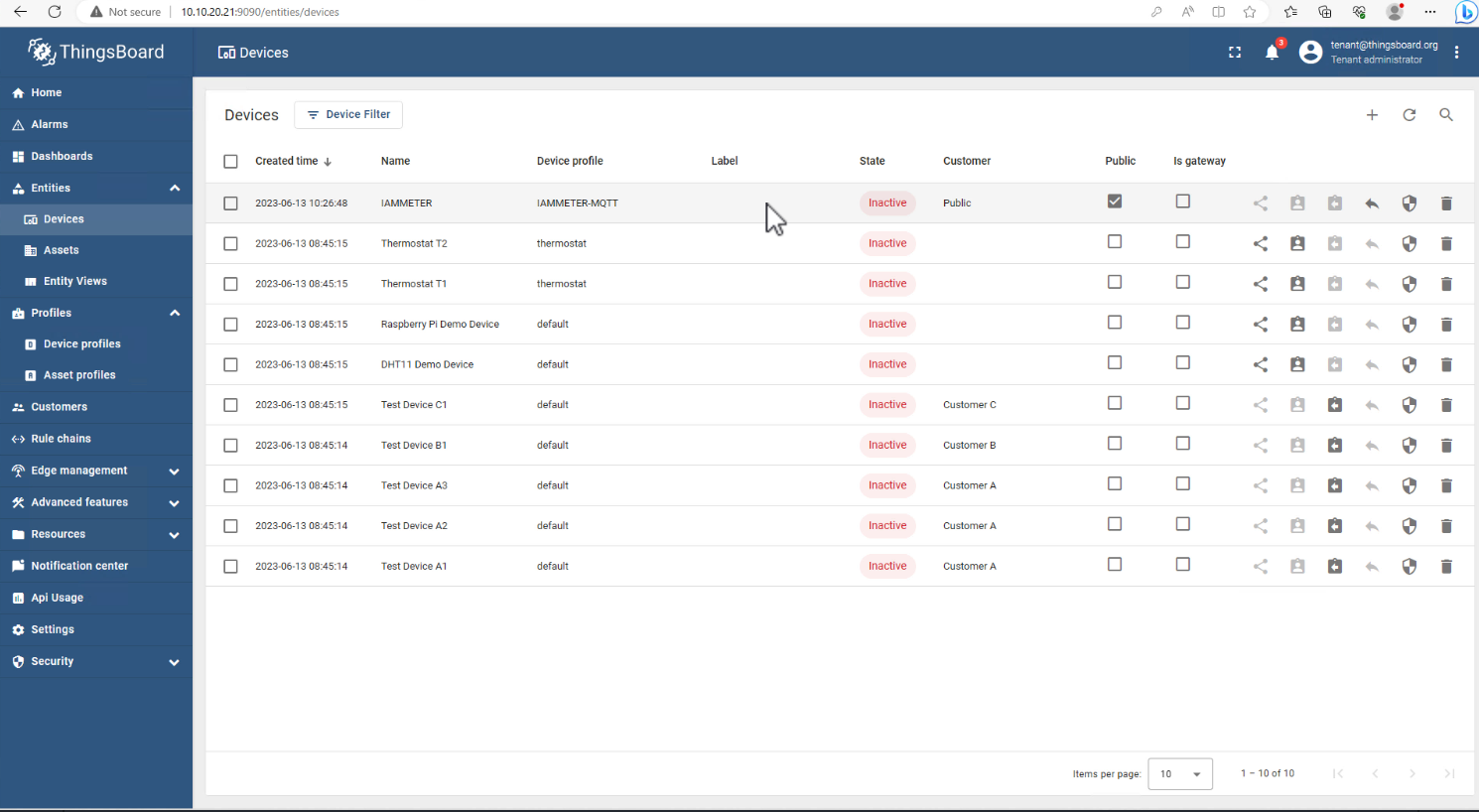
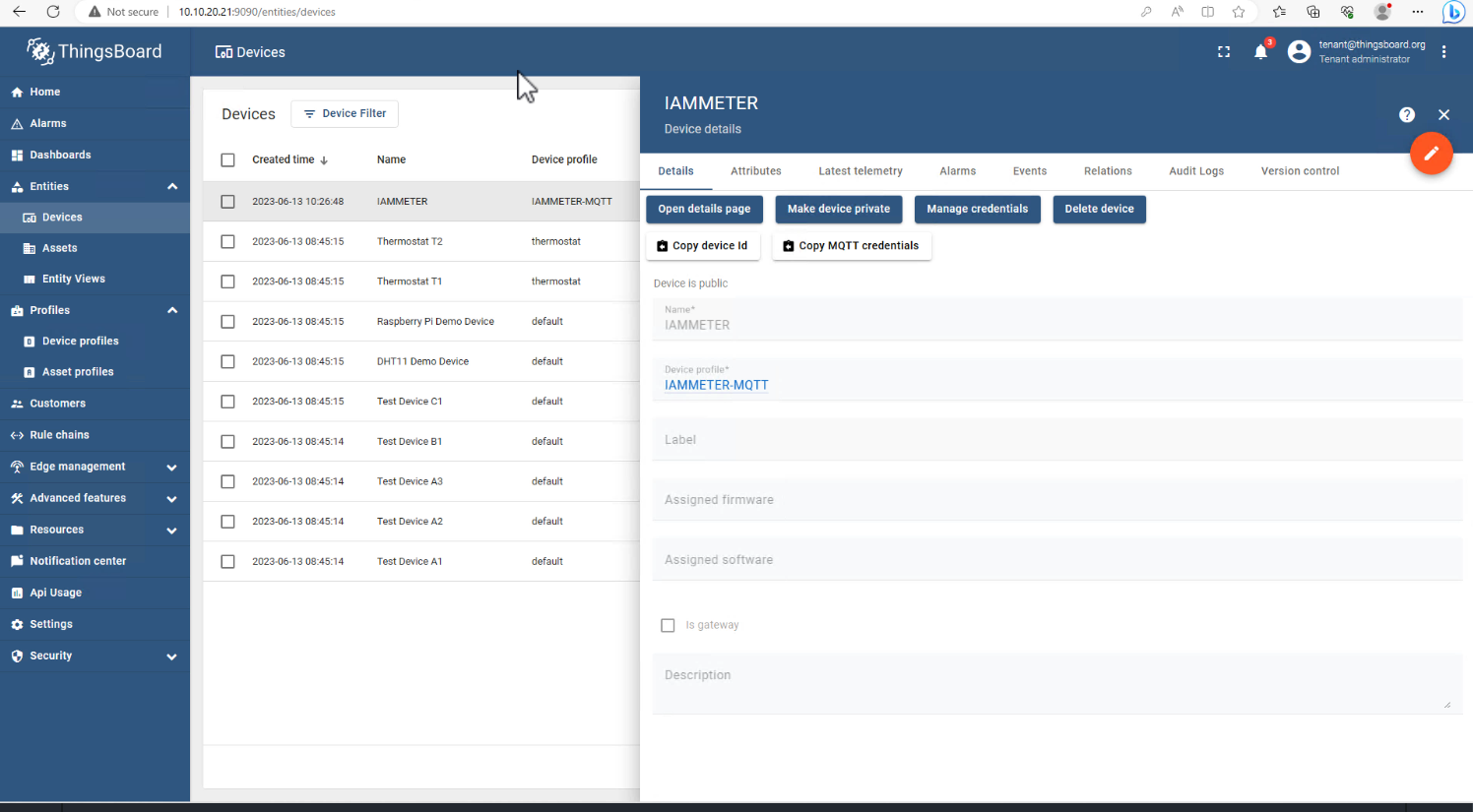
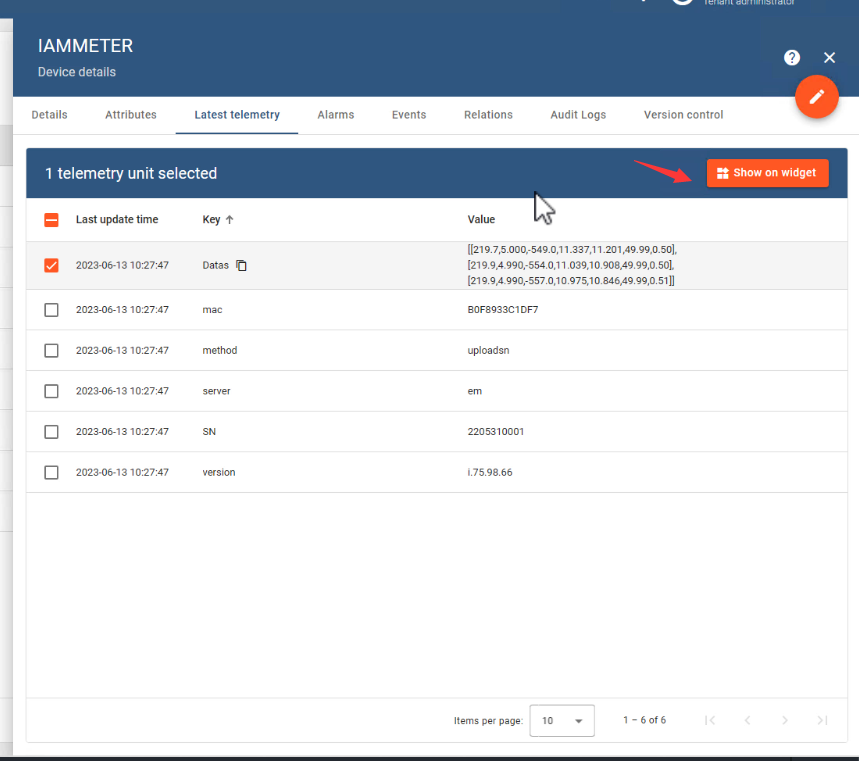
ดูข้อมูลแบบทันทีที่เผยแพร่จากมิเตอร์พลังงาน
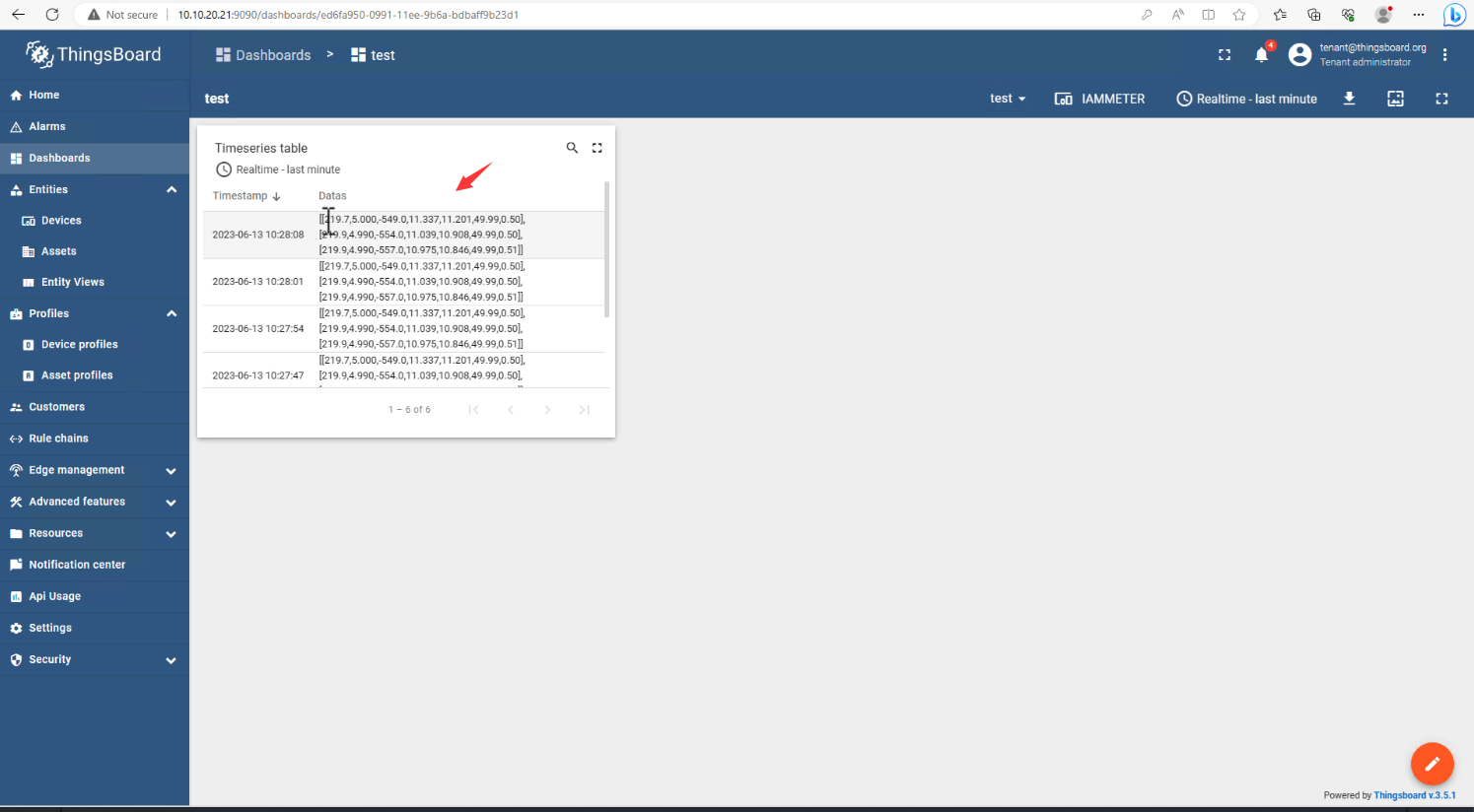
ข้อมูลที่เข้ามาจะแสดงอยู่ที่นี่
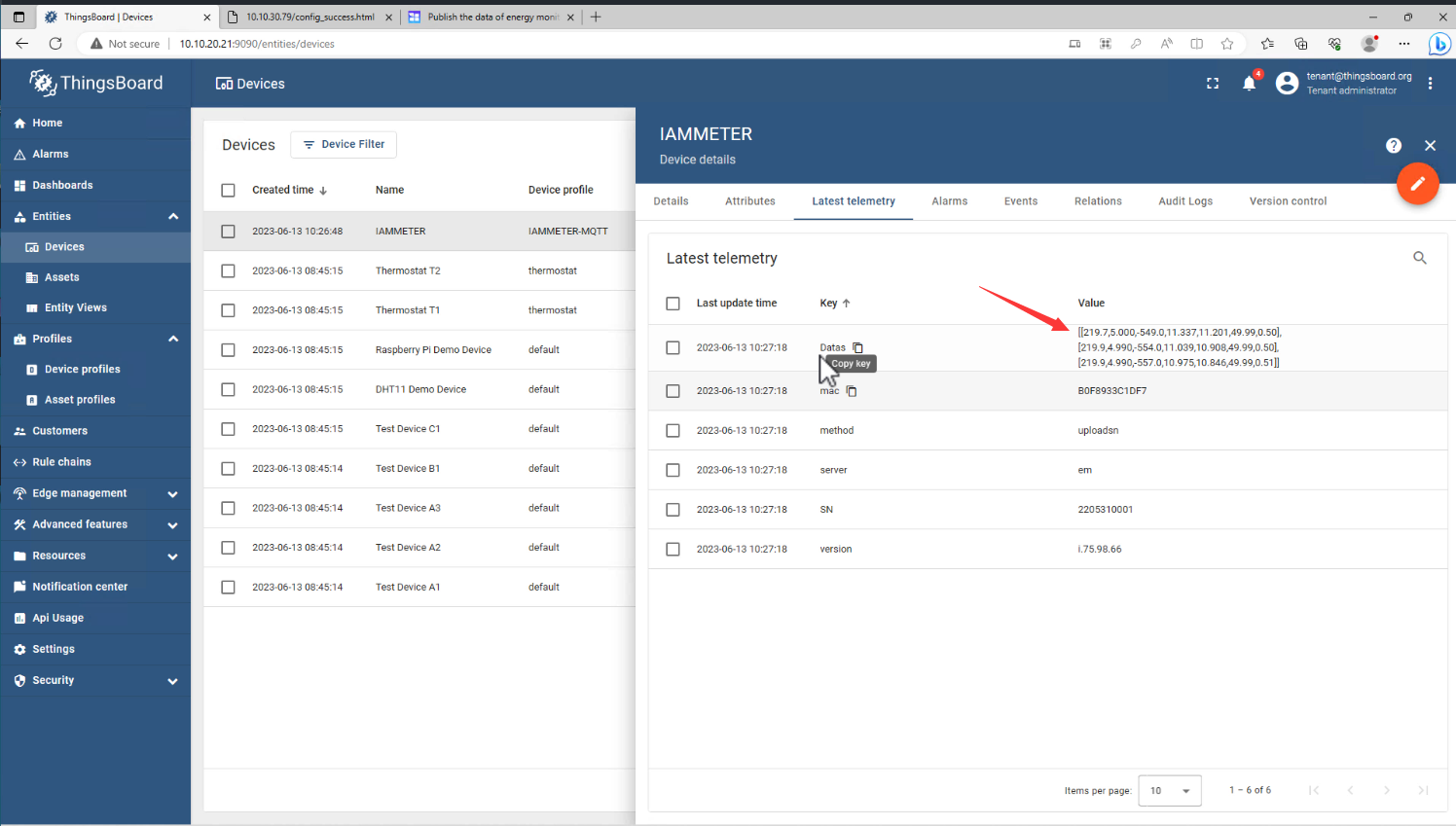
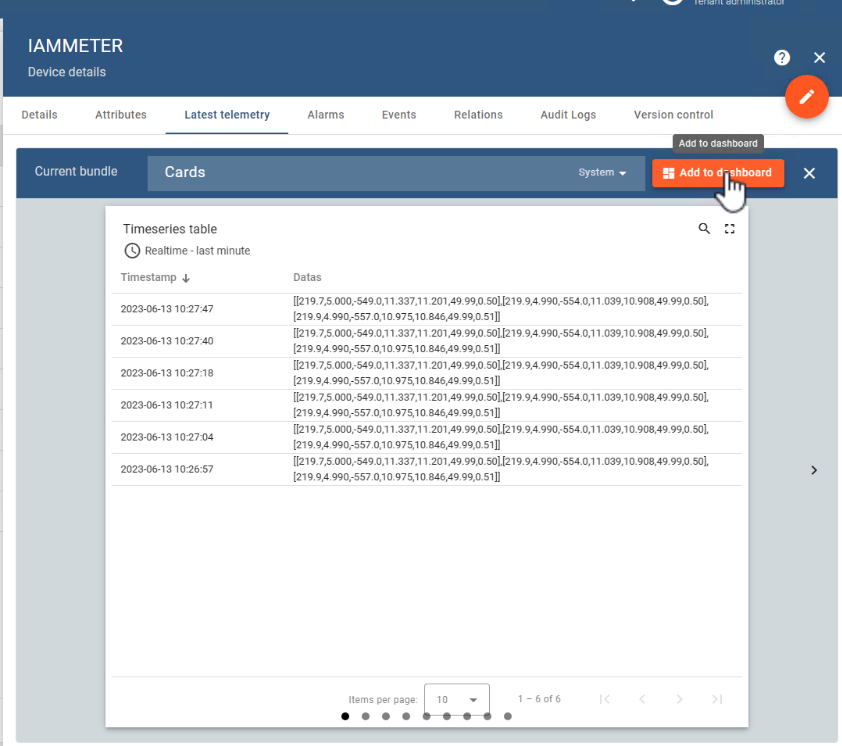
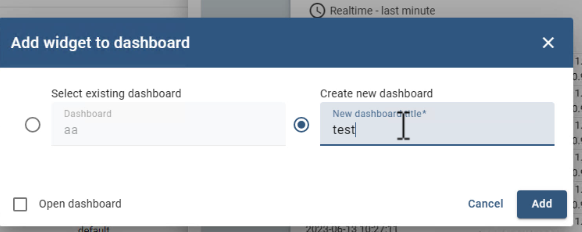
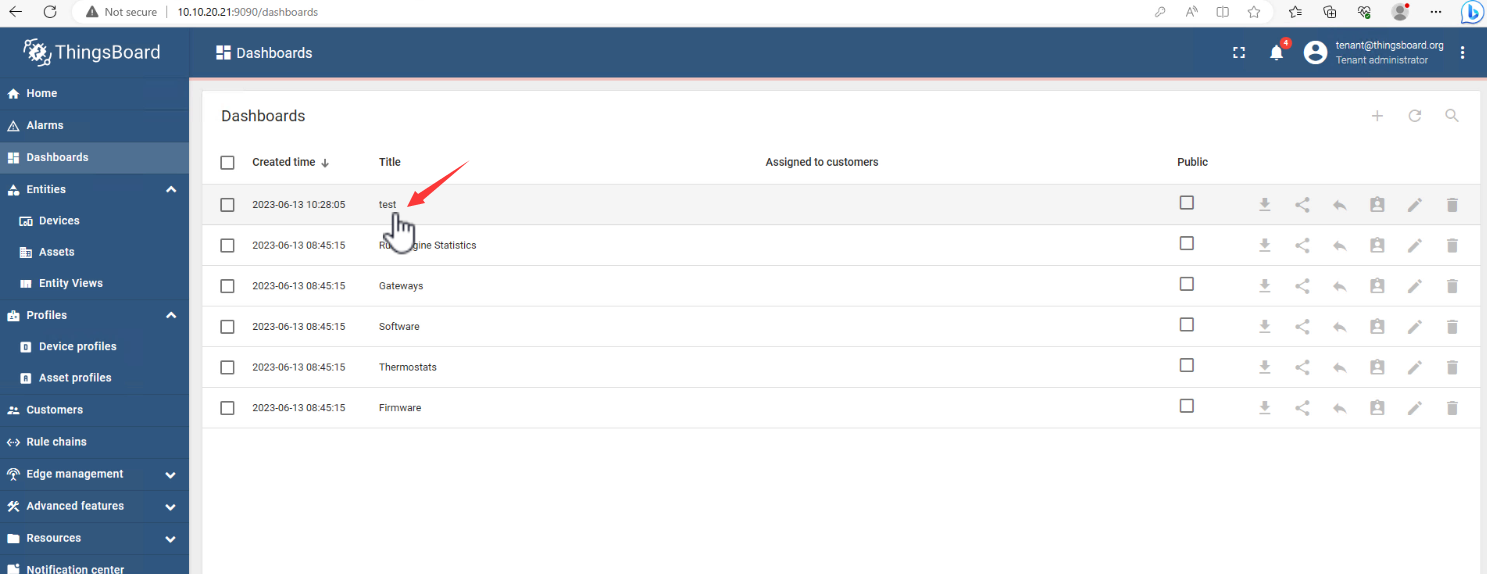
หรือคุณสามารถแสดงบน Widget
ข้อมูลอ้างอิง
แยกวิเคราะห์ข้อมูลของมิเตอร์พลังงานใน Thingsboard
เผยแพร่ข้อมูลของมิเตอร์พลังงานไปยังเซิร์ฟเวอร์ MQTT ของคุณ (iammeter.com)